Showing posts with label android tech. Show all posts

Wednesday, 15 April 2015

WhatsApp for Android update adds new group mute settings

WhatsApp for Android update adds new group mute settings

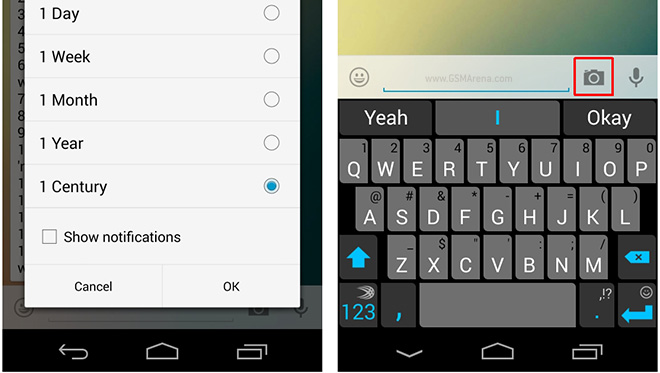
WhatsApp has released an update for Android (v2.11.230) that brings with it the highly requested group muting settings.

Anyone who has used WhatsApp groups would know how annoying some of them can get over time and there was no way to permanently mute them. The latest update, however, adds some new options that lets you mute a group beyond one week, all the way up to a century.
More importantly, WhatsApp has also added the ability to hide notifications as before, even if you muted a group, the phone would still show silent notifications. Now, if you uncheck ‘Show notifications’, the group would be totally silent.
Another change in the update is a camera icon next to the text input field in chats that lets you quickly take a photo and send to your contact, similar to Snapchat.
The update has not been pushed to the Play Store, yet, and you will have to go to the WhatsApp website (link below) to manually download and install the update.
Download •

Tuesday, 14 April 2015

Top 5 Things To Do Before Installing a Custom ROM on your Android Device

Top 5 Things To Do Before Installing a Custom ROM on your Android Device


Rooting and installing custom ROM offer many advantages indeed but, at the same time it can be a risky as it can cause serious problems to your phone and possibly even brick it.
People brick their phone because they don’t take precautions when installing a custom ROM on their device. If you understand things and go through it carefully, you’ll never be caught into the uncomfortable situation. Here are some important things to be taken into consideration before rooting or installing any custom ROM.
  1. Backup your Apps, Contacts, etc.
    The first thing that you should do before installing a custom ROM is to backup your applications, data, contacts, messages, etc. By backing up your phone, you won’t lose your important data when something happen during the procedure. (Read How to backup everything on rooted and non-rooted Android phones).
  2. Ensure decent battery level
    It is very important to check the battery level before installing a custom ROM or rooting an android device. Because, if your device turned off in the middle of the procedure due to lack of battery, it can cause your phone to brick. So, it is very important to have battery sufficiently charged before you start rooting or installing any custom ROM.
  3. Turn on the USB Debugging mode
    USB debugging mode is a mode to facilitate a connection between an Android device and a computer with Android SDK. Before an app like One-click-root can dig into your system and grant the access to your device, USB debugging is necessary to allow that function in the first place.
    That’s is why, whenever you want to perform such task, it is highly recommended that you turn on the USB Debugging mode from ‘Developer Options’ under Settings of your device.
    enable usb debugging mode
    On Android phones with Jelly Bean 4.2 and higher, the Developer Options are hidden by default and it can only be accessed by tapping 7 times on ‘Build Version’ from Settings ->About.
  4. Backup your current ROM
    If you’ve rooted your phone, it is recommended that before installing a custom ROM on your phone, you must back up your current ROM, whether it is stock or custom ROM. So that if you experience some lag or any other situation you don’t like after flashing a custom ROM, you can restore the phone to its original state with this tool. For the tutorial, you can check out at here.
  5. Backup Your Phone’s IMEI
    Sometimes, when you install a custom ROM, your IMEI number will be lost and as a result you will not be able to receive proper network signal. To avoid such situations, do not forget to backup a folder called ‘efs’ that stores your IMEI number.
    To access the folder, you have to install a root file explorer app like Root Explorer, X-plore File Manager, etc. Once installed, open the app and find the folder. You will easily find it as it is located on the root directory of your device. When you located the folder, just copy the entire folder and paste it on your external SD card. It will be even better if you copy it to your computer too. After installing the custom ROM, just copy and paste the folder in the same location where it was.

HTC One Tips, Tricks and Hidden Features

HTC One Tips, Tricks and Hidden Features


The HTC One is one of the best smartphones in the world, not only because of its excellent performance and great camera but also because of its awesome features.
Although, HTC One isn’t as tough as the features are in the Samsung Galaxy S4, but this list will help you unlock some of the top HTC One hidden features. If you are own One, the following tips and tricks will help you get the most out of your new device.
All of these hidden HTC One features should work on all the smartphone variants of HTC One, including AT&T and Verizon HTC One.

Touch to Capture Photos

The HTC One comes with an amazing camera which can be used to focus perfectly before you capture the objects. When you tap on the screen you can select the object to focus and everything else in the background would get blurred. That’s a feature which you would generally find on the DSLR’s camera and surprisingly this is available on this phone.
But if you prefer taking photos with a tap on the screen, then you can enable that option through the Settings in the Camera App. Go to Settings -> Shutter Option -> Touch to Capture and turn it on.

Quickly Switch Apps

You can quickly switch between apps without exiting to the home screen. To do that double tap on the Home button and it would show you a new window with some applications which were accessed recently. This is a pretty useful feature when you have to multitask in HTC One.

Quickly Switch Cameras

If you would like to Switch from the Front Camera to the Back Camera, you don’t have to go through the settings but simply swipe your fingers on the screen. This is yet very simple but useful feature to quickly switch the camera.

Remove BlinkFeed from Home Screen

BlinkFeed is a feature on HTC Sense5 that grabs all news from various sources and aggregates it onto one handy home screen panel for easy reading. If you don’t like staying current on news, you probably want to get rid of it. While you can not completely remove blinkfeed from your phone but you can hide it from showing up in the first screen. To do so, simply long-press on any homescreen and then long-press the thumbnail at the top of the screen. You’ll see the option ‘set as home’ appear. Select any screen other than Blinkfeed and you are done.
how to remove blinkfeed on htc

Use the HTC One as a Remote Control

The HTC One includes an IR blaster, which allows the user to control their TVs and cable box from across the room. Plus, with HTC’s Sense TV app, you can easily see what’s on using a slick interface and tap one of your favorite shows to start watching. You can also use the app to control your TV’s volume, record shows and more.
To use it, tap on Apps -> TV and follow the instructions to pair devices to your HTC One.
htc one as remote control

Modifying LED notifications

It’s pretty easy to modify the notifications flash on your phone. This is possible by going to the settings and changing the default settings. Tap on Settings -> Display, gestures & buttonsand tap on ‘Notification flash’. Now choose which types of notification you want the LED to flash for.

Use Magnifier Glass to Select Text

If you are found it difficult to select text and tapping it correctly, you can enable an option to show a magnifier glass when selecting text. To do this, go to Settings->Accessibility and check the show magnifier option.

Enable Car mode

HTC has a car mode that show you the options which you generally use while driving in a better display. It is not only easy to reach and select but also shown in large font. This means that you get the Navigation Dealer, Music and Speak features in a different UI which are easy to use while driving.
htc one car mode

Hide SMS Messages

There are times when you want to hide some of your SMS Messages in your phone. Usually you will need to download third-party app from Play Store to hide selected SMS messages but HTC One has made it easier for you. HTC One comes with an option of securing your important or private SMS from everyone.
You will be required to setup a password before using this feature. Tap on Messages ->General -> Settings -> Password and enter Password. Once the password is set, go back to the main messages application screen and long press on the message that you want to hide. You would get the option to Move to Secure Box.

Save Power with Sleep mode

Sleep mode will automatically switch off 3G connectivity when it’s not needed. While it may not seem like much, this can actually save you a ton of power. To turn it on, go to Settings->Power->Sleep Mode.

Snap Animated Photos with Zoe mode

Zoe mode is a key feature of HTC one. It takes a short video clip that can be sliced up into twenty images. To enable zoe mode, tap the small camera icon on the left side of the screen. This will turn on HTC Zoe and show it at the bottom of the screen. Now just tap the shutter to take animated photos.

Saturday, 11 April 2015

multiple watsapp account in one mobile

today am going to show you how to use multiple watsapp accounts one mobile


https://www.youtube.com/watch?v=q9wSp4ldRKQ


download 2line watsapp

Saturday, 28 March 2015

How to enable the Battery Saver on Android 5

How to enable the Battery Saver on Android 5

It is rather surprising that previous versions of the Android operating system did not ship with a battery saver mode that you could enable on the device to make sure the battery of the device lasts longer before it needs to be charged.
That's probably the core reason why battery apps are popular for Android. Most third-party manufacturers of devices have added their custom solutions to Android.
Google added a battery saver mode to Android 5 which you can enable to extend the time between charges on the device.
There are a couple of drawbacks to the mode which need to be mentioned. First, it reduces the performance of the device, limits vibration and most background data.
The background data limitation affects most email, messaging and notification applications that rely on syncing data as they won't update automatically anymore.
Information are updated in this case only when you open the affected applications. Depending on how you use the phone, this may be a severe limitation or none at all.
Since there is no whitelist available, it is an all or nothing approach which does not work if you rely on one or more apps to sync data automatically and inform you about updates.
Enabling Battery Saver mode on Android 5
battery
The following guide walks you through the steps of enabling Android 5's battery saver mode.
1. Unlock your phone and swipe from the top to the bottom to display notifications.
2. Tap on the settings icon in the top right corner of the screen.
3. Tap on battery on that screen.
4. This opens a projection of the battery time that is left and which apps have used the most battery in that time.
5. Tap on the three dots in the upper right corner and select battery saver from the context menu.
6. Move the slider from off to on to enable battery saver mode.
7. Instead of enabling it permanently, it is possible to enable it automatically if battery is at 15% or 5%.
Android indicates if the saving mode is enabled by painting the borders of the interface in orange.
If you want to disable the mode again display the notifications on your device and tap on the turn off battery saver option displayed there. This takes you to the menu in the Android preferences where you can turn it off.